
PDXpert PLM Software
Install Guide
Microsoft SQL Server diagnostics
Last reviewed on 2023-08-02
If there's a problem communicating with Microsoft SQL Server, errors are often shown on the PDXpert Application Server console's Information tab or in the PDXpert Server log file.
These instructions have been generalized to address common 64-bit versions of Microsoft SQL Server (2012, 2014, …) and editions (Express, Standard, …). If you encounter any discrepancy, refer to Microsoft's documentation for your specific configuration.
The PDXpert System Setup downloads and installs Microsoft SQL Server. If you see aSetup Failed message with alog file link, the most common problem is that your computer's antivirus software has blocked installation of the SQL Server database.
To verify, click on the log filelink, and scroll to the bottom of the log file. SQL Server setup is blocked if you see text similar to:
[xxxx:xxxx][date]e000: Error 0x8xxxxxxx: Process returned error: 0x8xxxxxxx
[xxxx:xxxx][date]e000: Error 0x8xxxxxxx: Failed to execute EXE package.
[xxxx:xxxx][date]e000: Error 0x8xxxxxxx: Failed to configure per-machine EXE package.
[xxxx:xxxx][date]i319: Applied execute package: SQLEXPR_x64_ENU.exe, result: 0x8xxxxxxx, restart: None
[xxxx:xxxx][date]e000: Error 0x8xxxxxxx: Failed to execute EXE package.
Other errors may include one or more of these:
The SQL Server service failed to start
Wait on the Database Engine recovery handle failed
The request failed or the service did not respond in a timely fashion
CREATE DATABASE failed. Some file names listed could not be created.
0x84be0bc2 - Unspecified error
Solution: Assuming that you have administrator rights to your computer, and are the only user logged into Windows, there is one main source, and a few less common sources, of this error:
Most likely, your computer's antivirus and/or firewall (AV/FW) is blocking the SQL Server installation or service startup. Disable the AV/FW and re-run the installation. If the installation works, then configure the AV and/oropen the FW to allow communications between SQL Server and the PDXpert Application Server, and between the PDXpert server and client application.
Windows Update may have a system restart pending, which is blocking SQL Server from starting. Restart your computer to install the update and allow the SQL Server service to start.
If you've installed SQL Server on a compressed volume, the system won't attach the PDXpert database. Uninstall SQL Server, decompress the entire volume and re-install; or, use a system that doesn't have a compressed volume.
SQL Server service may refuse to start, even after disabling the antivirus/firewall and restarting the computer. See Has SQL Server started?
There appears to be abug in Microsoft's installers for SQL Server 2008 and 2008R2. Uninstall SQL 2008R2 andmanually install SQL Server 2012 or later, and then run the PDXpert system setup.
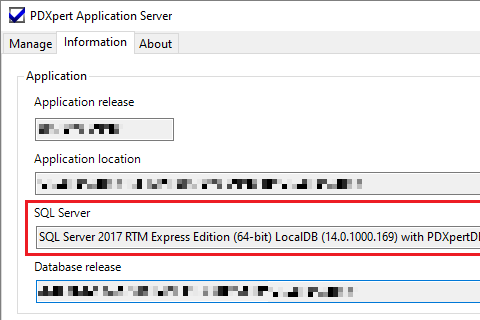
The PDXpert Server Information page shows the connected SQL Server. If the SQL Server database instance is running, its release is shown in the SQL Server text box, such asSQL Server 2019 Standard Edition (64-bit) (15.0.2070.41).
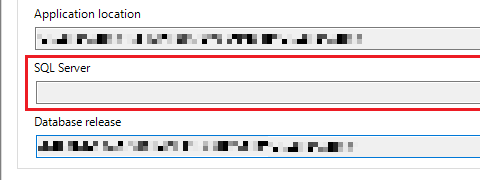
If SQL Server does not respond to the PDXpert service, then this text box is empty.
Restarting the PDXpert Server service resets the complete start-up process, including SQL Server, the PDXpert search engine, and the PDXpert Filter Service.
Open the computer Services panel to search the Windows Start menu
On Windows 8, 10, 11 and Server 2012 (and higher): Computer Management ➔ Services & Applications ➔ Services
On Windows 7 and Server 2008: Control Panel ➔ Administrative Tools ➔ Services
Find and select PDXpert Server in the list. If the Status
Is not shown as Running (that is, the column is empty), then click theStart the service link in the left panel.
Is shown as Running, then click theRestart the service link in the left panel. If asked to restart the PDXpert Filter Service, click the Yes button.
Windows Update will sometimes force SQL Server off-line. The SQL Server service may show asRunning but doesn't respond to PDXpert commands. You must restart Windows to install pending updates or reset SQL Server communication.
SQL Server service may need extra time to start after a Windows restart. If the PDXpert Server service is running before SQL Server is ready, then PDXpert may not get any response to its commands.
If Windows was running unusual start-up activity (such as updating .NET or SQL Server), then restarting Windows again often solves the problem. However, if this problem happens often, then try changing thePDXpert Server service to use Startup Type: Automatic (Delayed Start) option. (The SQL Server service not be delayed; use the Startup Type: Automaticsetting.) For more precise control, use a Windows scheduled task that's triggered at startup and manually starts the PDXpert Server service after a selected time delay.
This allows more time for SQL Server to finish its start-up, but may also delay PDXpert's response to the first client log-in requests. SeeWhen the PDXpert service starts before Windows is ready.
During the installation of PDXpert, you must have administrator rights to your computer, and be the only user logged into Windows.
If you see the error message Service 'PDXpert Server' (PDXpertServer) could not be installed. Verify that you have sufficient privileges to install system services, then it's possible that:
Another user is currently logged into your Windows system; or
You aren't logged into Windows using an administrator account.
The PDXpert System Setup installer automatically enables the TCP/IP protocol for you. However, if you've installed your own copy of SQL Server, then the TCP/IP is not enabled by Microsoft's SQL installers. This may be a source of client connection errors.
To enable the TCP/IP protocol:
From the Start menu, choose All Programs, point to Microsoft SQL Server, point to Configuration Tools, and then click SQL Server Configuration Manager.
If you don't see this menu option, you can open the Configuration Manager by finding Computer Management (or Computer in Windows 7) in the Start menu and choosing Manage. In the Computer Management window, expand Services and Applications, and then expand SQL Server Configuration Manager.
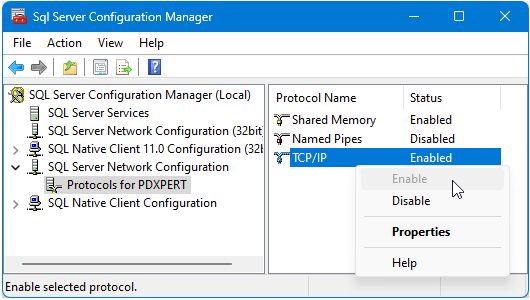
Expand SQL Server Network Configuration and then selectProtocols for PDXPERT (or whatever SQL Server instance you're using)
In the list of protocols displayed in the central panel, the TCP/IP protocol should be enabled. If you see that the TCP/IP protocol is disabled: click the TCP/IP protocol to select it, and then selectEnable from the Action menu or context menu. The status column and icon for the protocol will change to show that the protocol is now enabled. Close theSQL Server Configuration Manager window.
 .
.Your change will become effective after you (a) restart the "SQL Server (PDXPERT)" service in the Control Panel > Administrative Tools >Services console, or (b) reboot your computer.
For the Windows firewall, verify that the Windows firewall has an exception. (Refer to the supplier's instructions for all other firewalls.)
To get current details for your operating system, search the web for Windows firewall allow application
To enable the firewall exception in Windows 7 or later (including Windows 10):
Click Start, and then click Control Panel.
In Category view, open System and Security; on the right panel, click Windows Firewall.
In Icon view, open Windows Firewall.
On the left side of the Windows Firewall, click on the Allow a program or feature through Windows Firewalllink.
In the Allowed apps (programs) and features: list, you may see that "MS SQL Server" is listed, but it may not be selected. If necessary, mark the check box.
Alternatively, if "MS SQL Server" is not listed, do the following:
Click the Allow another programor Change settings button.
Click Browse... orAllow another app... button.
Browse to (for example):
drive:\Program Files\Microsoft SQL Server\MSSQL12.PDXPERT\MSSQL\Binn\
Select the file sqlservr.exeand click the Open button to add to the list of exceptions.
To enable the firewall exception in Windows XP or Vista:
Click Start, click Control Panel, and then open Security Center.
Near the bottom of the window (XP) or along the left side (Vista), click Windows Firewall. In Vista, then click on the Allow a program through Windows Firewalllink.
On the Exceptions tab, in thePrograms and Services list, you will probably see that "MS SQL Server" is listed, but it may not be selected as an exception. Mark the check box to enable the 1433 port for TCP requests.
Alternatively, if "MS SQL Server" is not listed, do the following:
Click Add Program.
Click Browse.
Navigate to (n is a numbered folder, usually 1, with today's date):
drive:\Program Files\Microsoft SQL Server\MSSQL.n\MSSQL\BINN
Select the file sqlservr.exeand click the Open button to add to the list of exceptions.
To determine if your AV software is blocking SQL/PDXpert communications, disable it entirely. Test whether the system is now working and, if so, determine from your AV supplier how to enable communications between SQL Server and the PDXpert server and between the PDXpert server and client applications.
Microsoft SQL Server cannot be installed on a compressed volume. Use an uncompressed volume instead. Seesupport.microsoft.com/kb/231347/en-us
If you see any of the following errors, you may have installed a new database, or moved or restored an existing database, onto a compressed disk volume:
- CREATE DATABASE failed. Some file names listed could not be created. Check related errors. (Microsoft SQL Server, Error: 5118)
- System.Data.SqlClient.SqlException (0x80131904) The file "[path]\PDXpertDB.mdf" is compressed but does not reside in a read-only database or filegroup. The file must be decompressed.
- Create failed for Database 'PDXpertDB'. (Microsoft.SqlServer.Smo) An exception occurred while executing a Transact-SQL statement or batch. (Microsoft.SqlServer.ConnectionInfo)
- Restore failed for Server '<servername>'. (Microsoft.SqlServer.Smo) System.Data.SqlClient.SqlError: The file "[path]\PDXpertDB.mdf" is compressed but does not reside in a read-only database or filegroup. The file must be decompressed. (Microsoft.SqlServer.Smo)
- Database 'PDXpertDB' cannot be opened due to inaccessible files or insufficient memory or disk space. See the SQL Server errorlog for details. (Microsoft SQL Server, Error: 945)
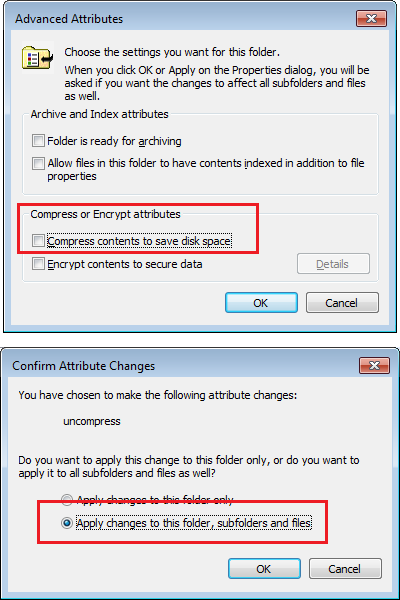
If your Windows Explorer shows folder or files names inblue rather than black, then these are compressed.
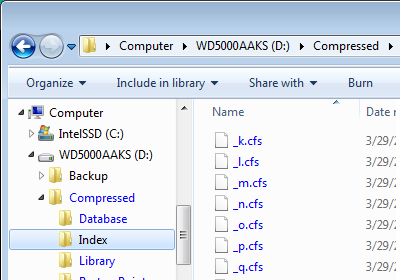
If you've attempted to install into a compressed location: Uninstall the PDXpert server and SQL Server, uncompress the installation location, and then run the PDXpert installer. When uncompressing the installation location, ensure that all subfolders and files are uncompressed.
The SQL Server Browser service lets users connect to instances of the SQL Server database engine that are not listening on port 1433 (which may occur, for example, if another named SQL Server instance has been previously installed). Depending on your Windows configuration, you may need to open UDP port 1434 to expose the SQL Server Browser service.
Using the same general approach as described immediately above:
Click Start, click Control Panel, and then open Security Center.
Near the bottom of the window (XP) or along the left side (Win7/Vista), click Windows Firewall. In Windows 7, click on the Advanced Settings link. In Vista, then click on the Allow a program through Windows Firewall link.
For Windows 7. In the Windows Firewall with Advanced Security window
In the left panel, click on Inbound Rules, and on the right Actionspanel, click on the New Rule...
Select Port as the Rule Type. Click Next.
Apply the rule to UDP and specify the local port as1434. Click Next.
Set the action to Allow the connection. Click Next.
Enable the appropriate profiles. Click Next.
Type SQL Server Browser in the Name text box, and clickFinish.
Repeat these steps for the left panel Outbound Rules.
For Windows XP and Vista. On the Exceptions tab, in the Programs and Services list:
You may see that SQL Server Browser is already listed, but it may not be selected as an exception. Mark the check box to enable the 1434 port for UDP requests.
More likely you will not see any reference to SQL Server Browser. In this case, click Add Port, typeSQL Server Browser in the Nametext box, type 1434 in the Port Number text box, select UDP, and then click OK.
If "SQL Server (PDXPERT)" is not listed in the Services panel, or you suspect that the installation is not correct, you should reinstall Microsoft SQL Server.
- Try to remove Microsoft SQL Server by opening to Windows Start menu, selecting the Control Panel, then Add or Remove Programs. If the list shows "Microsoft SQL Server" then click on the Remove button. When you're asked for an instance, select "PDXPERT: Database Engine". Follow any other instructions on the uninstaller program.
- Run the PDXpert system installer again, and reboot the computer.
If the PDXpert Application Server service still cannot be started because there are errors in communication with Microsoft SQL Server, send to us the availableMicrosoft SQL Server log file(s).
PDXpert accesses SQL Server using Windows Authentication with a local system account. This is normally the NT AUTHORITY\SYSTEM account, although it may have beenchanged during a manual install of SQL Server.
If the PDXpert Server service cannot contact SQL Server, it shows an empty area on the Information page, in the Application group's SQL Server box. The PDXpert Server's log file shows the error as System.Security.Principal.IdentityNotMappedException: Some or all identity references could not be translated.
Ensure that the Windows system account exists, has local administrator permissions, and has not been disabled, damaged or corrupted.