PDXpert PLM Software
Application Note
Exporting PDXpert PLM parts, BOM & sources to MRP/ERP
Last update 2021-06-13
This application note describes how to create custom data transforms for exporting parts and bills of materials, as well as manufacturers and their approved parts, to a manufacturing system. Fishbowl Inventory 18.3 is used as a practical example.
Topic contents
- Designing your export process
- Released home parts
- Released bills of materials
- Released partner organizations
- Released partner parts
- Example: Fishbowl Inventory
- Parts export file
- Bills of Materials export file
- Vendors export file
- Vendor Parts export file
- PDXpert configuration settings
- Exporting your released part, BOM, and vendor data
- Final comments
Transfers from PDXpert PLM to MRP
A typical manufacturing system ("MRP") treats each part revision as interchangeable with earlier revisions. Your MRP may require, accept or ignore engineering revisions. It may entirely replace previous data with revised data. Observe revision interchangeability good practice in PDXpert. Always verify that your import process and transforms create and accurately update your MRP records.
Correct sequence is essential for accurate transfers§
It's very important to move data from PDXpert to the manufacturing system in the exact sequence that changes are released. Many MRPs simply overwrite their current data with the new imported values. If the current assembly in MRP is revision 4, and you import an older change with revision 2, then the MRP will start building revision 2 – possibly with more recent (incompatible) Revision 3 or Revision 4 components, incorrect purchased parts or obsolete drawings.
-
When the change is manually exported from PDXpert, always transfer the changes using their Released dates. Do not skip changes, as later changes may rely on earlier content. Do not use the change form's Number – Change 1297 may be released after Change 1306, and may even update the items on Change 1306.
-
When the change is transferred using automation, query the database using the [viewer].[ChangeView] [ReleasedDate] or the [dbo].[Change_View] timeline's increasing commit integer (ChangeNum > 0), where the workflow Lifecycle/State ≥ 10. Do not use the change form's viewer Number or dbo ItemItentifier for determining the correct export/import transfer sequence.
Designing your export process§
Only released data should be transferred to the manufacturing system. Pending items in PDXpert PLM have no effect on your production. Therefore, a released or completed engineering change form is the obvious foundation for moving approved data from PDXpert to your MRP.
A good transfer design recognizes that certain data must be matched, some data should be imported only once, and some PLM data may not be useful in MRP.
-
Decide what data your MRP requires from PDXpert: home parts, bills of materials, vendors and their parts, distributors, documents, files, units of measure, etc.
-
Compare your MRP configuration to PDXpert configuration, and identify shared data. For example, you may want to configure PDXpert's Units of Measure ("UOM") collection members to match the MRP's UOMs, or vice versa, or edit both to match your preferred units. Some transferred data may
-
be case-sensitive or use only non-Unicode characters, like ANSI Basic Latin uppercase alphanumeric
-
match a name rather than a code, or vice versa
-
have specific date format: local culture 5/10/22 or ISO8601 2018-04-19 dates in local/UTC time
-
require a Boolean formatted as TRUE/FALSE, YES/NO, 1/0
-
contrain value length (first 10 text characters, integer > 0)
-
limit the range of values to a known list of values (make/buy codes, units of measure).
-
-
Where the MRP needs data that PDXpert doesn't currently provide (for example, commodity codes or supplier classifications), add the appropriate custom attributes to PDXpert's part types – but only if designers are likely to know the correct values, or you want to define a useful default. Ensure that default values for both built-in attributes and custom attributes are correct. The query can also hard-code constant or default values not in PDXpert.
-
Develop and test the SQL queries needed to move data from PDXpert to your MRP.
-
Convert your final SQL statements into transforms, and assign their locations to the AffectedItemsList context. Or, use the SQL in automation scripts.
There are four common PLM-to-MRP transfers:
-
New home organization part records.
-
New and revised bills of materials ("BOM") records.
New manufacturer partner organizations.
-
New and revised assignments of manufacturer parts ("sources") to a home purchased part.
If the MRP can accept document records or file attachments, these may be exported using a separate file format, or as instruction items in the BOM import.
Released home parts
The most common export contains the first release of a part number.
Unless the MRP has a data field to track revisions, previously-released parts that are revised aren't included in the export file.
Further refinements are possible, such as exporting only parts that reach a minimum lifecycle. The query would exclude lifecycles with a relative maturity below, say, Prototype. This would, however, require ensuring that the query also includes components where a released parent assembly references parts below the accepted lifecycle.
Released bills of materials
The export file is generally in one of two formats:
- parent assembly, child component and details like quantity are all on a single data row; or
- the parent assembly is on one row, and each component (with quantity, notes, etc.) is on a separate row.
The MRP generally accepts a multi-level BOM as a series of single-level parts lists.
Some bills of materials may not be converted into assemblies, but remain as service kits or spares. If the MRP requires these to be uniquely tagged, then the tag may be a custom attribute or even a PDXpert Part Types collection member.
The import file likely replaces the MRP's existing BOM. However, some MRP may require only differences (remove row, replace row, add row) and the transform would be modified to mirror the assembly's Markup, rather than Current, list.
Released partner organizations (manufacturers, vendors, suppliers)
A manufacturer organization record is transferred only once, when the organization's first part is used. All later parts will refer to the same organization. You'll usually not want to replace the MRP's current organization record with older data in the PLM system.
The transform examines previous change forms' partner parts, and includes only the manufacturers that haven't appeared earlier.
Newly-added collection members, such as a unit of measure, need to be exported only on its first use. Transferring a new member could follow the same approach as adding new organizations.
Released partner parts
Partner parts are assigned as approved sources to home purchased parts. Unlike PDXpert, where a partner part is a full record with its own attributes and attachments, most MRPs only track the most basic information about source parts: partner organization name, that partner's part number, and possibly ordering details.
A partner part is only relevant when it's actually used by a home part. The MRP doesn't care about when the PLM partner part was released, it only cares about when a home part needs it. Therefore, the transform doesn't export source parts when they're released, but only when they're assigned to the home part, and that relationship is approved using the change form.
Example: Fishbowl Inventory§
With minor exceptions, the default configurations of both PDXpert and Fishbowl are used in the following example. For more information, see Fishbowl's Imports and Exports help topic.
Although the SQL SELECT columns in the example transforms are designed for Fishbowl, the FROM and WHERE clauses are good starting points for your own MRP.
Parts export file
Code options
The example transform includes two options:
-
Option @useBomTypeCode. The PartType column value is (default value false):
- when true, the part's BOM Type Code selection
- when false, the @partType string
-
Option @partType defines the PartType column text when @useBomTypeCode is false (default Inventory).
Part row definition
| Column | Datatype:Max | Required | Note | PDXpert data and calculated values |
|---|---|---|---|---|
| PartNumber | Text | Yes | Number | |
| PartDescription | Text:252 | Yes | 1 | Name (description) |
| PartDetails | Text | No | 2 | (Part type) Change form: Data revision @ Lifecycle [Relative maturity] Release note |
| UOM | Text | Yes | 3 | Default unit of measure |
| UPC | Text | No | Global number (GTIN/UPC) | |
| PartType | Text | Yes | 4 | Inventory or BOM Type Code or custom collection |
| Active | Text | No | 2 | true when a new iteration is released, otherwise false when canceled |
| Weight | Text | No | 5 | Part mass (weight) numeric value |
| WeightUOM | Text | No | 5 | Part mass (weight) unit of measure |
Notes:
-
Any TAB, CR (carriage return) and LF (linefeed) character in the PDXpert part name is replaced with a space.
-
Fishbowl's part record doesn't include a field for recording the current iteration. In the example transform, the most recent release details are assigned to this field. If the iteration's Revision and Lifecycle are not exported to Fishbowl, then the part may only need to be exported when it's first released and finally canceled.
-
Ensure the part UOM's name in PDXpert matches the case-sensitive UOM abbreviation in Fishbowl.
-
Using the SQL @useBomTypeCode option, items can be always be exported as Inventory or their individual BOM Type Codes collection member. Or, a custom collection can be created.
-
The part type's Materials list must be enabled to allow users to enter, and then export, the part mass.
Bills of Materials export file
Fishbowl Inventory manages pre- and post-production information about an assembly in two sections under a single bill of materials record.
- The first section contains the output of the manufacturing process, the Finished Good, which is assigned a physical part number that can be the same as, or different from, the BOM record number.
- The second section contains the set of individual items (Raw Goods) that are required to construct the Finished Good.
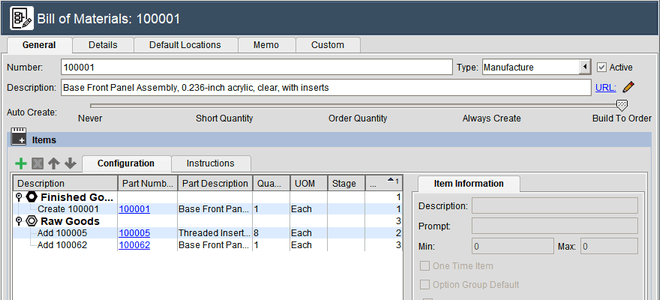
The example below shows that finished good 100001 is produced from two components (Raw Good numbers 100005 and 100062). These are shown on the Fishbowl bill of materials record 100001, which is of type Manufacture.
Code options
The example transform includes two options:
-
Option @BOMSuffix. This makes the BOM number slightly different from the imported assembly's part number. For example, when exporting PDXpert assembly 12345, the Fishbowl Finished Good would be 12345. If the @BOMSuffix is set as BOM, then the BOM number would be 12345BOM. The default setting is empty, and doesn't change the BOM number.
-
Option @AssemblyPartTypeName1 … @AssemblyPartTypeName4 specifies the name of each PDXpert part type that is a Fishbowl BOM Stage. Additional part types can be added. One default value is defined: Assembly
Finished Good row definition
A single import file imports both the Finished Good and Raw Goods. Since the Finished Good definition has fewer columns than the Raw Good, the example code adds dummy columns [NoDataA], [NoDataB], ...
| Column | Datatype:Max | Required | Note | PDXpert data and calculated values |
|---|---|---|---|---|
| Flag | Text | Yes | 1 | BOM |
| Number | Text | Yes | Number | |
| Description | Text | Yes | Name (description) | |
| Type | Text | Yes | 1 | Manufacture |
| Revision | Numeric | No | 2 | Data revision if a numeric value, otherwise empty |
| AutoCreateType | Text | Yes | 1 | Build To Order |
Notes:
-
Fixed values. Refer to Fishbowl documentation for other values.
-
The import file's Revision is defined as a numeric value, which is how the example query is written. However, the Fishbowl client allows this value to be entered as text, so some versions of Fishbowl may allow Text import.
Raw Good row definition
| Column | Datatype:Max | Required | Note | PDXpert data and calculated values |
|---|---|---|---|---|
| Flag | Text | Yes | 1 | Item |
| Description | Text | Yes | Create {assembly number} or Add {component number} | |
| Type | Text | Yes | 1,2 | Raw Good |
| Part | Text | Yes | Number if valid, otherwise empty | |
| Quantity | Numeric | Yes | Bill of material Quantity if valid, otherwise 0 | |
| UOM | Text | Yes | 3 | Part's Default unit of measure if valid, otherwise ERROR |
| IsOneTimeItem | True/False | No | true if BOM quantity category is Per Setup, otherwise false | |
| IsStage | True/False | No | 4 | true if the component is a @AssemblyPartTypeName assembly, otherwise false |
| StageBOMNumber | Text | No | Number if the component is a @AssemblyPartTypeName assembly, otherwise empty | |
| InstructionNote | Text | No | BOM row Notes (if present), followed by RefDes (if present) | |
| InstructionSortOrder | Numeric | No | 5 | The Finished Good is 1, then each BOM row sequentially assigned |
Notes:
-
Fixed values. Refer to Fishbowl documentation for other values.
-
Subassemblies on higher-level assemblies are always assigned as Raw Good, even if they also have a Finished Good definition.
-
Ensure the part's default UOM in PDXpert matches the case-sensitive UOM abbreviation in Fishbowl.
-
The example query allows for up to 4 assembly part types to be listed (more can be added easily). PDXpert's starting Assembly is the default value.
-
Fishbowl cannot use the PDXpert BOM's actual Find values. Although Fishbowl defines a ConfigurationSortOrder column, the imported values appear to be ignored.
Vendors export file
The Vendor record combines information from PDXpert's Organizations collection member and, if available, a related Persons member.
An organization is included in the import file the first time it's referenced on a home part's Sources list. If the manufacturer part is released without being used on a home part, or the manufacturer has been previously exported, then it's not included.
Vendor row definition
| Column | Datatype:Max | Required | Note | PDXpert data and calculated values |
|---|---|---|---|---|
| Name | Text:41 | Required | 1 | Organization Name |
| AddressName | Text:90 | Required | 2 | {organization name} (Main) |
| AddressContact | Text:41 | Required | 3 | Name of person assigned to organization; or organization Mail PO box; or (No contact). |
| AddressType | Numeric | Required | 2 | 50 (Main Office) |
| IsDefault | True/False | Optional | 2 | true |
| Address | Text:90 | Optional | Street address | |
| City | Text:30 | Optional | City | |
| State | Text:30 | Optional | State (region) | |
| Zip | Text:30 | Optional | Postal (ZIP) code | |
| Country | Text:60 | Optional | Country | |
| Main | Text:30 | Optional | Organization's Voice phone | |
| Mobile | Text:30 | Optional | Organization's Mobile/alternate | |
| Fax | Text:30 | Optional | Organization's Facsimile | |
| Work | Text:30 | Optional | Contact person's Voice phone | |
| Home | Text:30 | Optional | Contact person's Mobile/alternate | |
| Pager | Text:30 | Optional | Organization's or, if none, contact's Pager/emergency | |
| Text:30 | Optional | Organization's or, if none, contact's Primary email address | ||
| Other | Text:30 | Optional | Contact's IM address | |
| CurrencyName | Text:255 | Optional | Currency collection Name | |
| CurrencyRate | Numeric | Optional | 2 | 0 |
| Status | Text | Optional | 2 | Normal |
| Active | True/False | Optional | 2 | true |
| URL | Text:256 | Optional | Organization's URL/website |
Notes:
-
This must be the first column. If name already exists in Fishbowl, this line will attempt to create an alternate address. Changes to the PDXpert Organizations name may create a new address record in Fishbowl.
-
Fixed values. Refer to Fishbowl documentation for other values.
-
If more than one Persons member is related to the manufacturer, then the person is selected by sorting on Is active: users can select and Name values. If no person is the contact, the organization's Mail PO Box is substituted instead. If this is empty, then (No contact) is used.
Vendor Parts export file
The Vendor part record exports PDXpert's home part's Sources list.
A vendor part is exported only when it's referenced on a home part's Sources list. If the manufacturer part is released without being used on a home part, then it's not included.
Vendor Part row definition
| Column | Datatype:Max | Required | Note | PDXpert data and calculated values |
|---|---|---|---|---|
| FishbowlPartNumber | Text | Required | 1 | Home part Number |
| Vendor | Text (:41) | Required | 1 | Partner part Owner |
| VendorPartNumber | Text | Required | Partner part Number | |
| Cost | Text | Required | 2 | Partner part's Unit cost per default unit or, if 0, home part's Unit cost per default unit |
| UOM | Text | Optional | Partner part Default unit of measure | |
| LeadTime | Text | Optional | 3 | Partner part Lead time (days) |
| DefaultVendor | Text | Optional | true if the part is the first by Rank, Owner on Sources list, otherwise false | |
| MinQty | Text | Optional | 3 | Partner part Minimum order quantity |
Notes:
-
This must match an existing record in Fishbowl. The organization's name is limited to 41 characters to match the maximum defined in Fishbowl's Vendor import file.
-
Cost is required even after the part has been previously imported. The PDXpert cost always replaces the current Fishbowl cost. Therefore, vendor costs should always be backflushed from Fishbowl to PDXpert before exporting revised Sources lists. If the source part has 0 cost, then the home part's cost will be used (which may be backflushed from the Fishbowl part's Average Cost export or Standard Cost export).
-
The unit of measure is not exported to Fishbowl. Ensure that PDXpert is configured to use the same UOM as Fishbowl.
PDXpert configuration settings§
-
Fishbowl appears to favor numeric part revisions. If you have the choice, set your PDXpert part types (or at least the assembly part types) to use numbers for the part data revision.
-
The Fishbowl part's PartType should not to be confused with PDXpert's Part Types collection members, they have different purposes. The example query assigns Inventory value as the Fishbowl PartType for all parts. However, you can specify the full range of Fishbowl PartType values by modifying the BOM Type Codes collection or by creating a new custom collection that's applied to all PDXpert part types.
-
Ensure that the PDXpert's Units of Measure members match the Fishbowl unit of measure abbreviations. The primary UOM is each or ea but also review other Count members, as well as the Area, Length, Volume and Mass categories. Fishbowl's UOM abbreviation matching is case-sensitive. For example, edit the following UOMs to match:
PDXpert Fishbowl each ea lbm lbs l L ml mL -
Add the new Transforms collection members. See PDXpert's Adding a new transform help topic.§
These example transforms demonstrate export concepts and reflect generic Fishbowl settings, some of which may not be appropriate for your system. Verify imported data in a test system before importing into your production system.
-
Transform code Export Fishbowl Released Parts
-
Transform code Export Fishbowl Released BOMs
-
Transform code Export Fishbowl Released Vendors
-
Transform code Export Fishbowl Released Vendor Parts
-
-
The example code uses <context /> and <settings /> features of PDXpert 12.0 and later, but can be used with earlier releases after a bit of editing.
-
Review the transform code and update as needed to match your Fishbowl configuration.
Exporting your released part, BOM, and vendor data
You can also export the released data using the on the menu, and selecting the change form.
From within the PDXpert client:
-
Open the change form that released your data.
-
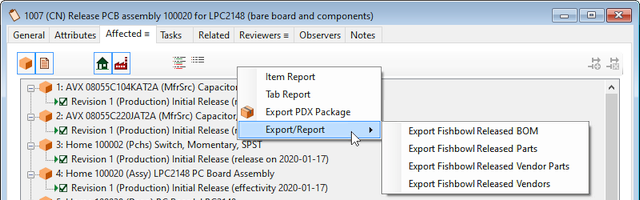
On the Affected tab, right-click to open the context menu. Select the command, then select the desired transform.
-
In your Fishbowl client application, import the file(s) using the menu, command. Always import parts first, and vendors before vendor parts.
-
Parts
-
BOMs
-
Vendors
-
Vendor parts
For import details, see the Fishbowl Inventory Imports and Exports help topic.
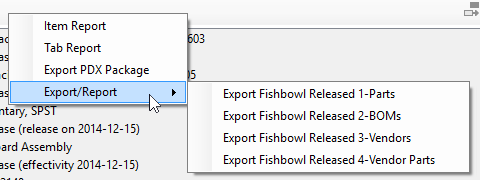
You can include the import sequence in the Transforms name, which is then included in the exported filename.
-
-
In Fishbowl, check that the data was transferred as you expect.
Final comments
All data exported assumes that data from earlier change forms have been imported. For example, manufacturers that appear on earlier change forms are excluded in later export files. Be sure you don't skip importing any change form's data. Or, construct your queries for a complete current data set, ignoring intermediate changes.
If you edit the CSV export file before importing, be cautious how the file is saved. Fishbowl import files can be ANSI text or UTF-8 without Byte Order Mark ("bom"), but not UTF-8 with bom or UTF-16.
An example query to compare .viewer. and .dbo. change views:
SELECT
DCHG.[ChangeNum] AS [DBOChangeNum]
,DCHG.[ItemIdentifier] AS [DBOItemIdentifier]
,DCHG.[State] AS [DBOState]
,DCHG.[ReleaseDate] AS [DBOReleaseDate]
,DCHG.[Name] AS [DBOName]
,VCHG.[Number] AS [VWRNumber]
,VCHG.[Lifecycle] AS [VWRLifecycle]
,VCHG.[ReleasedDate] AS [VWRReleasedDate]
,VCHG.[Summary] AS [VWRSummary]
FROM
[PDXpertDB].[dbo].[Change_View] DCHG
INNER JOIN [viewer].[ChangeView] VCHG ON VCHG.[ItemId] = DCHG.[Id]
ORDER BY
DCHG.[ChangeNum]
Fishbowl® and Fishbowl Inventory® are registered trademarks of Fishbowl.
This application note was relevant to the PDXpert software release that was current at time of publication. Product changes since that time may affect its utility. We'd be happy to assist you in assessing the applicability of this note to your situation.
Working within PDXpert
- Designing an engineering change process and workflow
- Server: Fast file content searches using IFilters
- Server: Scheduled backup for the database and library
- Server: Running several PDXpert Application Servers on the same network
- Batch Import: Preparing file attachments for import
- Batch Import: Converting a PDX package for PDXpert
- Batch Import: Keep settings, remove test item records
- Batch Import: Creating release sets for imported data
- Batch Import: Bulk replacing item attributes
- PDX package: Compare all product data, not just the BOM
- PDX package: IPC-2570 package implementation
- PDX package: IPC-2570 security signing and password extensions
- Adding a custom SQL Server report to PDXpert
- Adding a custom SQL Server report to PDXpert 8.0 to 11.2
- Designing email notice templates
- Including labor time and cost in assemblies
- Materials management for regulatory compliance
- Switching an existing item to a different type
- What's the difference between Item Revision State and Item Lifecycle Phase?
- Copying an assembly BOM to another assembly
- PDXpert permissions: User access design
Working with other software applications
- Using Altium Designer EDA software with the PDXpert client
- Using Altium Designer EDA software with the PDXpert server
- Using Cadence OrCAD Capture CIS with the PDXpert client
- Using Cadence OrCAD Capture CIS with the PDXpert server
- Using Pulsonix EDA software with the PDXpert server
- Importing a CAD bill of materials into PDXpert PLM software
- MRP/ERP data transfer options with PDXpert PLM software
- Exporting PDXpert PLM parts, BOM & sources to MRP/ERP
- Importing Trilogy Design Parts&Vendors data into PDXpert
- Exporting a bill of materials from PDXpert to Visio