
PDXpert PLM Software
Install Guide
Microsoft SQL Server log files
Microsoft SQL Server creates log files that can help identify installation problems. If you need to send SQL Server log files for diagnosis, collect and save the logs into a single compressed folder.
To obtain the installation logs for Microsoft SQL Server 2008 / 2008R2 / 2012:
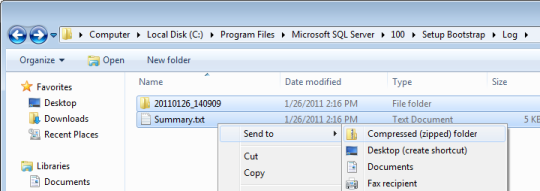
Open Windows Explorer, and navigate to this folder:C:\Program Files\Microsoft SQL Server\version\Setup Bootstrap\Log\ whereversion is 100 or higher.
This \LOG\ folder contains a summary file called Summary.txt, as well as the contents of at least one (and possibly more) matching time-stamped subfolders <YYYYMMDD_HHMMSS>.
Select all of the files & folders with this \LOG\ folder, open the Windows Explorer context menu, and select Send To > Compressed (zipped) folderto create a new folder with a .zip file extension.
Microsoft SQL Server creates log files that can help identify operational problems. If you need to send SQL Server log files for diagnosis, collect and save the logs into a single compressed folder.
For the Microsoft SQL Server named instance PDXPERT, the error logs are located in:
C:\Program Files\Microsoft SQL Server\MSSQLver.PDXPERT\MSSQL\Log
where ver is the version number, such as10 for SQL Server 2008.
Microsoft SQL Server LocalDB (2012 / V11.0) error logs:
%LocalAppData%\Microsoft\Microsoft SQL Server Local DB\Instances\v11.0\error.log
which usually resolves to:
C:\Users\username\AppData\Local\Microsoft\Microsoft SQL Server Local DB\Instances\v11.0\error.log