Upgrading the PDXpert Application Server
Upgrades may add or modify features and settings. Read all release notes published between your installed release and the upgrade release.
You must have administrator rights to your PDXpert Server computer. You must be the only logged-in Windows user.
Your system must show a valid license for the upgrade release. The license Subscription ends date must be later than the upgrade release's publication date, shown on the release note as Release number: Publication date.
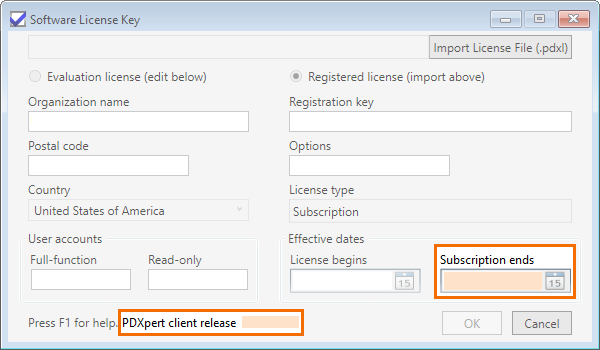
Before upgrading your production system, you should validate the upgrade in a separate test server (see below). Contact us if you need a test server license.
If you're upgrading from a release that's older than PDXpert 9.0, first upgrade the PDXpert Server and all clients to PDXpert 9.0, then upgrade again to the final release.
If you're upgrading to a release that's older than PDXpert 8.0 (for example, to PDXpert 7.5), then refer to Upgrade to PDXpert 7.5 or earlier.
A release installer applies all features, improvements and fixes to your installed release. You don't need to apply each upgrade release separately.
A system upgrade is applied to your server computer.
-
In a single-user system, you may be using a single PC that acts as the server computer and contains the PDXpert client application.
-
If you use more than one computer for your PDXpert system, upgrade the PDXpert system on your server computer before upgrading the PDXpert client application on each workstation computer.
Download and save the upgrade PDXpert System installer.
Obtain the PDXpert System installer using your installed release's download page; registering to receive a new download link via email; or requesting the upgrade release from your application support engineer.
Save the PDXpert System installer to your server computer. Do not run the upgrade installer directly from your browser. An interrupted connection may cause the upgrade process to fail.
-
Confirm that:
You have administrator rights to your server computer.
-
You are the only logged-in Windows user on your server computer.
To confirm: (1) use the Windows command query user or (2) open Task Manager, click More Details and then the Users tab.
Your PDXpert system has a current license loaded.
- You've reviewed the installation guidelines.
- You've reviewed any special instructions in all related release notes.
- Your system has all important Microsoft updates, and you've recently restarted your computer.
-
Close all PDXpert client applications to ensure that all work has been saved.
-
Stop access from any applications, utilities or services that rely on the PDXpert database (CAD part look-up, MRP transfers, database backup services, etc.).
-
Back up your data as described in the help file: Contents > PDXpert Application Server > How to... > Back up the database or in on-line help. If you have a large number of files, you may use the Database without Library (.bak) option. The upgrade will not affect any library files.
-
Run the PDXpert System installer on your current server computer. This also updates the PDXpert client on the same computer. An upgrade usually takes just a few minutes. Exceptions will be described in the release notes.
A PDXpert System upgrade normally won't install a new SQL Server LocalDB or database instance (see note below).
During an upgrade, the PDXpert installer may display the message: Warning 1910. Could not remove Shortcut {PDXpert app}.lnk Verify that the shortcut file exists and that you can access it. You can safely ignore this warning.
If the error Service 'PDXpert Server' (PDXpertServer) could not be stopped. is shown, then see How to stop a stuck Windows service.
Users may log in after the server displays the Success: Database has been upgraded. (or similar) status message.
When upgrading, changes to the database file sizes and dates normally are not meaningful.
-
After an upgrade, the next database backup may be smaller than the backup taken before the upgrade. This is normal and temporary. The pre-upgrade backup (BAK) contains the original LDF file. During the upgrade, SQL Server may free space in the LDF file, which makes the post-upgrade BAK file smaller.
-
Unless SQL Server is restarted, the MDF/LDF file dates usually won't show the upgrade date. Upgrade code sends normal database commands to SQL Server, and doesn't restart the database.
Validating your database & library upgrade§
Use the following steps to confirm that all database services are operational, and that your database and library file pointers have been successfully updated.
Do not connect one server's local client to another server that has a different release. If you need this configuration, contact technical support for assistance.
-
On the server computer, start the PDXpert Server. Click on the Information tab:
Confirm that the Application: Application release displays the expected PDXpert upgrade.
-
Confirm that the Application: SQL Server displays the current SQL Server version and edition; for example, SQL Server 2019 Standard Edition (64-bit) (15.0.2070.41).
If you do not see any SQL Server information, then the SQL Server service may not be started. Restart the SQL Server service by rebooting the server computer, or by using .
SQL Server may be trying to start before Windows is ready; if the SQL Server service is set as Startup type:Automatic, then try Service type:Automatic (Delayed Start).
If SQL Server still doesn't appear in the SQL Server area, then check Is the firewall allowing communications? and Is your anti-virus software allowing communications?.
-
Start the PDXpert client using an account with normal or analyst role permissions:
- Enter account name and password, and
- Click the OK button.
If you see the log in message The server could not be contacted, then the PDXpert client communications service did not automatically restart after the upgrade. Restart the service by rebooting the server computer. Or, to avoid rebooting, use the tool to Stop, then Start, the PDXpert Server service.
Open a part or document that has a file attachment. Confirm that the file attachment can be copied from PDXpert to your computer's Desktop, and confirm the file appears as expected. You may want to test both recent and older items.
Items shown in the Item Explorer's Recent list are immediately available without waiting for search indexing to be finished.
Indexing may take a while for a large database and library, and server performance may be affected. Search results and performance return to normal after indexing is complete.
-
Some part, document, and change form search results are available as indexing proceeds, but all records are available only when item indexing is finished. Progress is shown in the PDXpert client:
-
File library search results may remain empty until all attachments have been indexed. Indexing the file properties and content takes much longer than item indexing, possibly requiring hours. Depending on server performance and file content, index progress is typically in the range of 100 to 1000 files per minute. An in-place upgrade may go much faster, if most of the files have been indexed earlier.
-
Verify that each Transforms member (custom reports, imports and exports) performs as expected. Review and test any updated Transforms collection members, often shown as Effect on your system in the release notes.
-
If you have defined any Views collection members for sharing data with CAD, MRP or similar applications, verify that each view result contains expected data.
-
Review all release notes, particularly those that affect system rules and any changes to collections that affect your users. These are often shown as After upgrading notes.
-
Restart/restore any custom applications, utilities or services that rely on the PDXpert database and verify proper operation.
-
Review all required use cases to ensure your workflows, user permissions, process documentation, user training materials, and related information are updated to reflect changes in the software.
Related topics§
Note on SQL Server installation during upgrades
These rules are shown in order of precedence:
Instance: When upgrading, the PDXpertSystemSetup.exe does not install SQL Server Express LocalDB (x86 or x64) when any of these conditions is true:
-
Install is invoked using the command line parameter db=0 (literally, where the supplied parameter overrides the default 1)
-
A SQL Server instance named PDXPERT exists
-
LocalDB 2012 through LocalDB 2022 exists
Database: The PDXpert server attempts to use an existing PDXpertDB database when
-
HKEY_LOCAL_MACHINE\SOFTWARE\PDXpert\Server\ConnectionString exists in the registry
-
An instance named PDXPERT exists
-
A LocalDB default instance exists (the instance name is defined by LocalDB, which will usually be MsSqlLocalDb)
-
A LocalDB instance named (localdb)\MsSqlLocalDb exists
- 001. Installation overview
- 002. Preparing the server computer
- 003. Standard PDXpert System setup
- 004. Standard PDXpert PLM client setup
- 005. Installing LocalDB for PDXpert client ODBC
- 006. Custom installation: SQL Server
- 007. Custom installation: PDXpert server
- 008. Custom installation: Private cloud
- 009. Custom installation: Client deployment
- 010. Upgrading the PDXpert Application Server
- 011. Upgrading the PDXpert PLM client
- 012. PDXpert server post-install checklist
- 013. Install license CA certificate chain
- 014. Moving PDXpert server database and files
- 015. Managing a PDXpert test server
- 016. PDXpert Application Server diagnostics
- 017. PDXpert PLM client diagnostics
- 018. Microsoft SQL Server diagnostics
- 019. Microsoft SQL Server log files
- 020. Connecting SQL Server Management Studio
- 021. Upgrading SQL Server
- 022. Service configuration settings
- 023. Application folders and files
- 024. System architectural diagram
- 025. Release notes (change history)