Standard PDXpert System setup
This setup process is for those who want to install PDXpert software on a reasonably current computer, without any special considerations.
You must have administrator rights to your computer, and be the only user logged into Windows. The PDXpert System installer requires permissions.
Your machine and network security policies must permit internet access to the *.microsoft.com website. The PDXpert system installer examines your machine and, if necessary, downloads missing prerequisites such as the .NET Framework and SQL Server. If your system doesn't have internet access, then install these components before running the PDXpert System Setup.
If you have a 64-bit version of Windows with 32-bit SQL Server already installed, do not use the PDXpert system installer to install SQL Server. You must install SQL Server before running the PDXpert System installer. See Installing on computers that already have SQL Server.
Got 2 minutes? Watch the installation and account log-in tutorial
1. Prepare your computer
- Verify that your computer meets the PDXpert software's hardware and software requirements.
- Install all important Microsoft updates, and then restart your computer(s).
2. Save the PDXpert PLM system installer
If you have not yet obtained the PDXpert system installer, register and download the setup file now.
Save the PDXpert system installer to your computer. Do not run the installer directly from your browser. An interrupted connection may cause the installation process to fail.
3. Run the PDXpert system installer
Run the PDXpert System installer on one computer. The PDXpert Application Server and PDXpert PLM client are matched to your 32b/64b Windows. If you have not installed a Microsoft SQL Server instance for PDXpert's use, then SQL Server LocalDB will be downloaded from Microsoft and installed.
4. Log into the PDXpert client
The default account user name is Admin and the account has a blank password.
If you're not familiar with PDXpert operation, start by viewing these tutorials.
5. Your software license registration key
For users without a license key file
If you're installing PDXpert for the first time, you won't need a software license registration key. After you start the PDXpert client, enter your company name in the Software License Key window.
Your initial trial period is 3 weeks, and you can contact us to extend the period.
For users with a license key file
Load the license key file as described in this PDXpert help topic.
Related topics§
System diagrams§
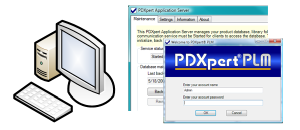
Single-user install: Server, database and client installed
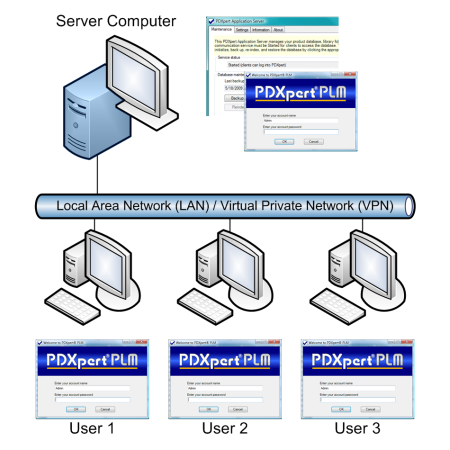
Multi-user install: Server, database and client installed, then each workstation
- 001. Installation overview
- 002. Preparing the server computer
- 003. Standard PDXpert System setup
- 004. Standard PDXpert PLM client setup
- 005. Installing LocalDB for PDXpert client ODBC
- 006. Custom installation: SQL Server
- 007. Custom installation: PDXpert server
- 008. Custom installation: Private cloud
- 009. Custom installation: Client deployment
- 010. Upgrading the PDXpert Application Server
- 011. Upgrading the PDXpert PLM client
- 012. PDXpert server post-install checklist
- 013. Install license CA certificate chain
- 014. Moving PDXpert server database and files
- 015. Managing a PDXpert test server
- 016. PDXpert Application Server diagnostics
- 017. PDXpert PLM client diagnostics
- 018. Microsoft SQL Server diagnostics
- 019. Microsoft SQL Server log files
- 020. Connecting SQL Server Management Studio
- 021. Upgrading SQL Server
- 022. Service configuration settings
- 023. Application folders and files
- 024. System architectural diagram
- 025. Release notes (change history)